TF6420 - TwinCAT 3 Database Server | Adding DB Configurator at TwinCAT XAE Solution
Remember that this page isn’t affiliated with BECKHOFF and MUST NOT be used as official documentation. For that, please refer to the official BECKHOFF webpage.
All content is free, and the main goal is to provide TUTORIALS. If you plan to use ANY of it in production or real applications, it MUST be thoroughly tested before implementation (use the code at your own risk).
For TF6420 TwinCAT 3 Database Server, BECKHOFF Infosys contains comprehensive documentation. I highly encourage you to read it thoroughly!
Introduction and comparison between Configurator and VS/XAE Integration
When using TF6420, you can set it up using the Configurator Tool (a graphical configurator, see here) or attach it directly to an XAE solution. Although the Configurator Tool allows developers to back up configurations as XML (as mentioned in the introductory post), I find it easier to attach the TF6420 library project to the XAE project. This way, your TwinCAT 3 Database Server setup remains linked to your XAE and PLC project, making future maintenance more convenient.
On non-Windows CE devices, the configuration file is located at
C:\TwinCAT\3.1\Boot.
On Windows CE devices, it is located at\Hard Disk\TwinCAT\3.1\Boot.
Read and write access is available for different database systems. Optional database extensions can be enabled or disabled as needed.
Toolbar Question
Before proceeding with the TwinCAT 3 Database Server project creation, I’d like to address a common setup question. As mentioned earlier, TF6420 is not installed by default in TwinCAT XAE, and its toolbar remains hidden until manually enabled. To make it visible, right-click on the XAE toolbar and select the TF6420 option, as shown below:
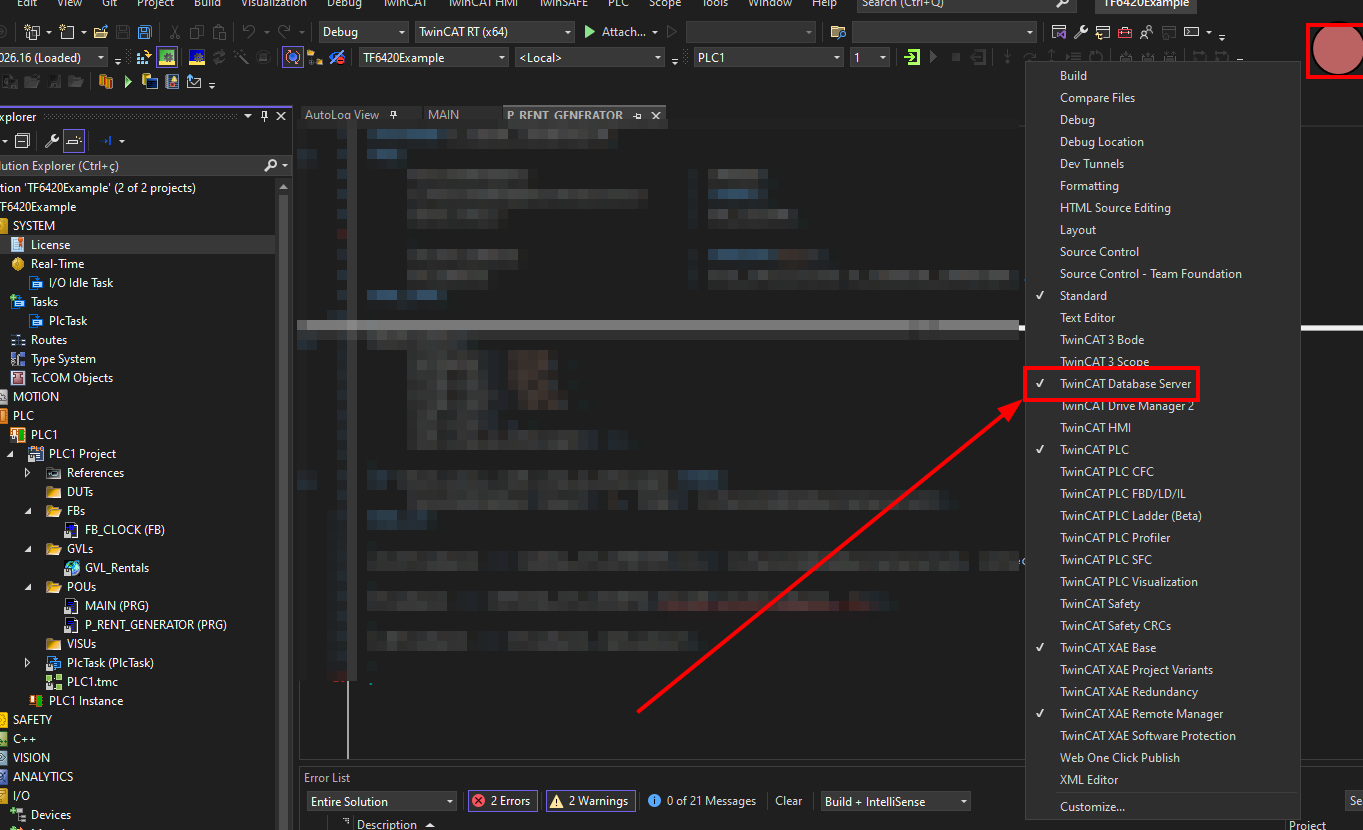 Enabling the TF6420 Toolbar in XAE
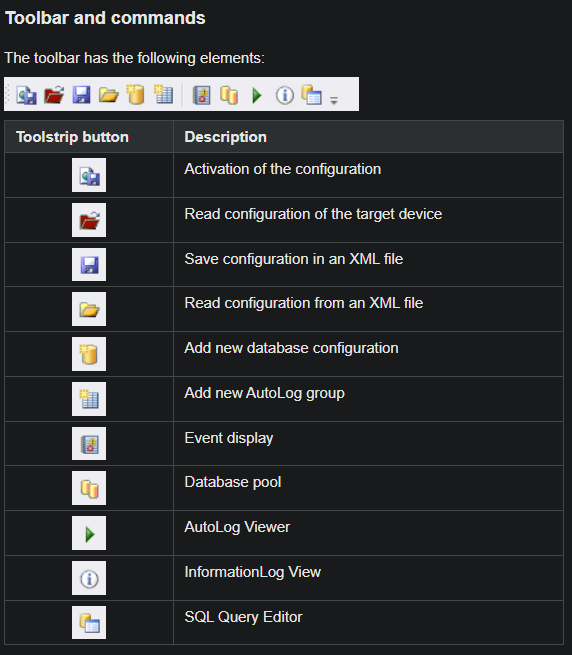 Toolbar Infosys documentation
TwinCAT 3 Database Server VS/XAE project creation
The process to attach a TwinCAT 3 Database Server project is straightforward, as shown below:
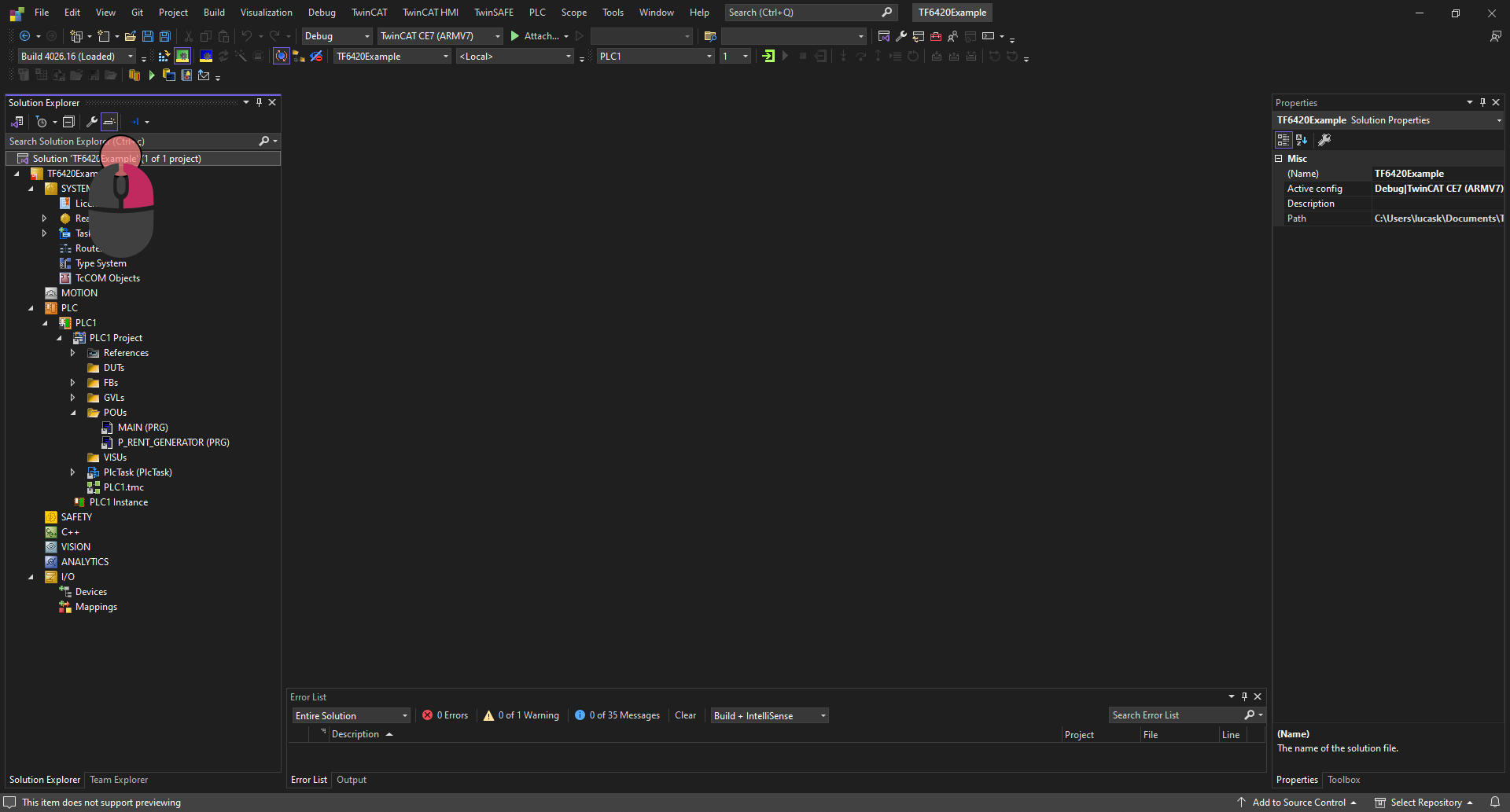 Adding TwinCAT 3 Database Server to XAE Solution
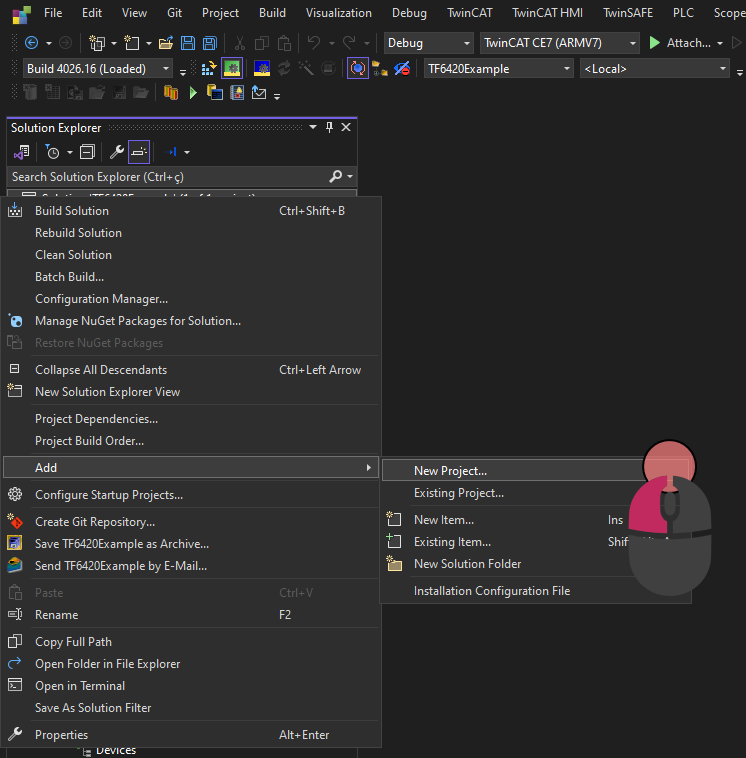 Adding TwinCAT 3 Database Server to XAE Solution
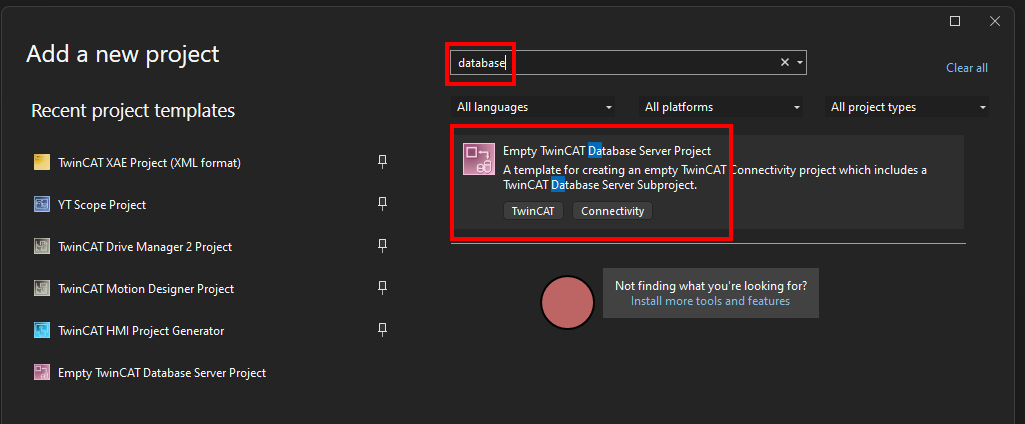 Adding TwinCAT 3 Database Server to XAE Solution
Note that any number of TwinCAT Database Server Projects can be integrated in a TwinCAT connectivity project.
The TwinCAT Database projects map a file-based project system. The individual configuration documents are managed in the Solution Explorer. Any modifications that are pending in the editors are identified with * in the documents. If changes are made without opening a document (through the Properties window), the changes are nevertheless registered. Further information on the project system can be found in section “TwinCAT Database Server project”.
TwinCAT Database Server Icon Colors
As mentioned in Infosys, the project icon provides important information to developers through its color coding, which indicates the current state of the target system:
| Color | Icon | Status Description | Additional Information |
|---|---|---|---|
| Red | 🟥 | The TwinCAT Database Server cannot be reached | - |
| Blue | 🟦 | The TwinCAT Database Server has no valid license | Licensing Info |
| Green | 🟩 | The TwinCAT Database Server can be reached and is ready for use | - |
| Violet | 🟪 | The TwinCAT Database Server is in AutoLog mode. Data are exchanged between PLC and database | - |
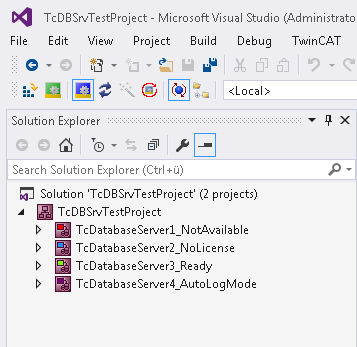 Icon Colors demonstration. Source: Infosys
Properties Window
Project document settings can be configured through either dedicated editors or the Properties window. These modifications affect file content but not the metadata within the TwinCAT Connectivity project file.
Key features:
- Detailed property descriptions appear in the lower section of the Properties window
- Certain lists remain editable only within their dedicated editors
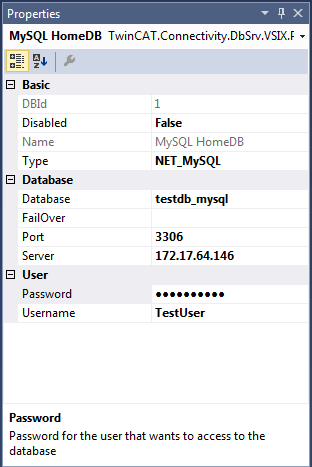 Properties Window. Source: Infosys
Output and Error List
Visual Studio’s integrated console output displays TwinCAT Database Server notifications, with these important details:
- Output Window:
- Shows notifications, warnings, and error messages under the “TwinCAT Database Server” category
- Note: This category may not appear until the first message is generated
- Error List:
- Provides primary error information in Visual Studio’s standard format
- Accessible through: View > Error List in the Visual Studio menu
Both windows can be opened via View > Output and View > Error List respectively.
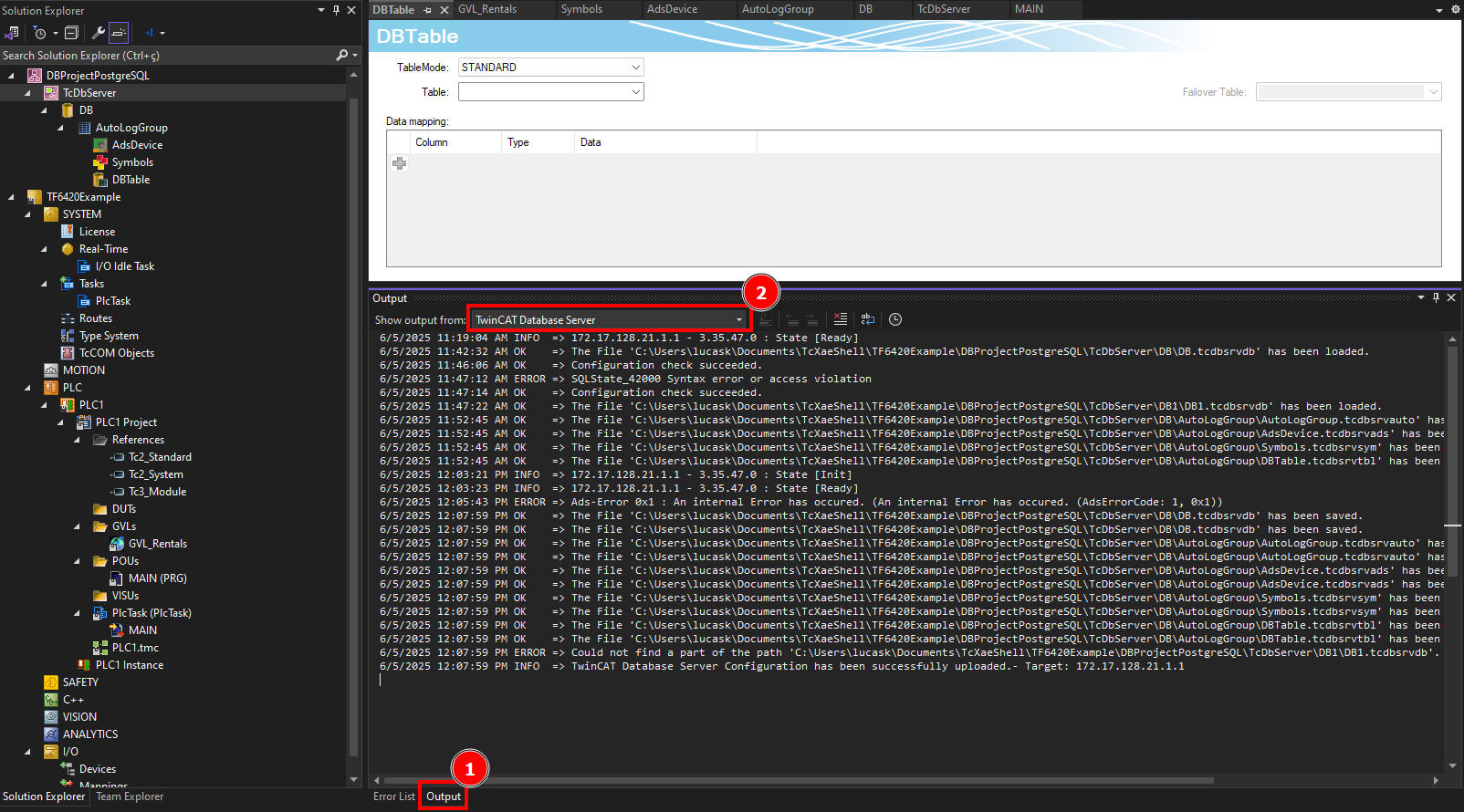 Database Server Output Monitoring Interface
Editor for Server Settings
The TwinCAT Server Settings is throughly documentated at official Infosys page. Here I just summarized the most important points described on Infosys.
Server Configuration
The Server Settings editor manages general TwinCAT Database Server configurations:
Target System Selection
- Choose target system via AMS NetID dropdown (1)
- Requires pre-configured TwinCAT route
- Settings persist on server after configuration transfer
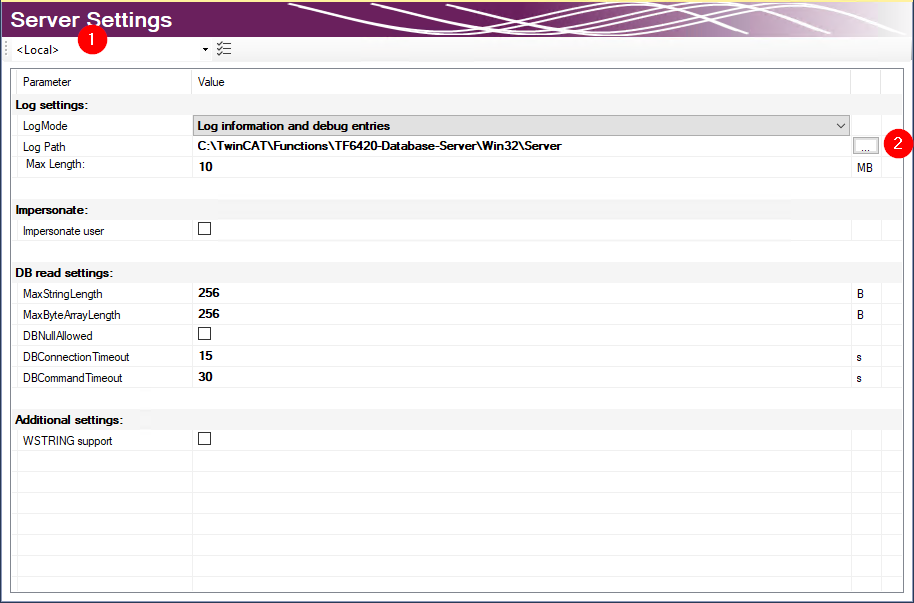 TF6420 Server Host Selection. Source: Infosys
Log Settings
- Configure fault/error logging
- Generates detailed log entries viewable in Information Log Viewer
- Configurable parameters:
- Log file path
- Maximum file size
- Log detail level
- Recommendation: Disable logging post-troubleshooting for performance
Network Access
- Enable Impersonate option for file-based databases (Access/SQL Compact) on network drives
Note: Not supported on Windows CE
Database Connection Parameters
| Setting | Description |
|---|---|
| MaxStringLength | Maximum string length for PLC variables |
| MaxByteArrayLength | Maximum byte array length for PLC variables |
| DBNullAllowed | Determines if ZERO values are accepted |
| DBConnectionTimeout | Connection attempt timeout duration |
| DBCommandTimeout | Command execution timeout (important for large datasets) |
Supported Database Types
- Select installed database types in server settings
- Default: All installed databases selected
- Unused databases can be deselected to optimize target system resources
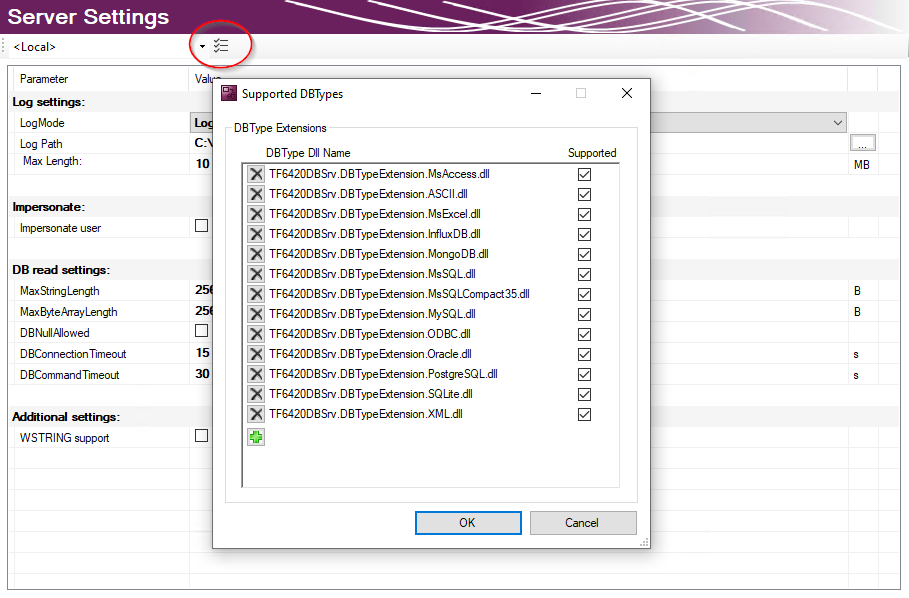 TF6420 Target DB Types Drivers. Source: Infosys
Properties Window Configuration
Server settings can be modified through:
- Dedicated Editor window
- Properties window
- Changes directly update the configuration file
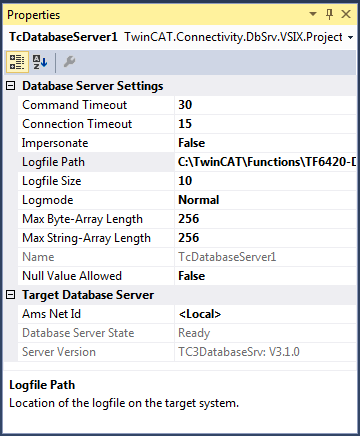 TF6420 Server Settings using Properties Tab. Source: Infosys
I, personally, don’t like this approach. I recommend using the Editor Tab.
Project Activation
To activate a configured project:
- Right-click the TwinCAT Database Server project
- Select Activate Configuration from context menu
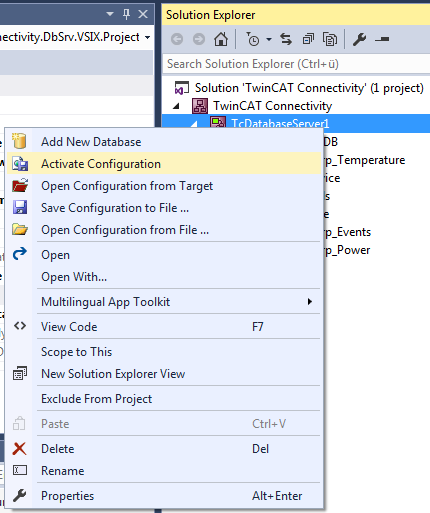 TF6420 Server Activation. Source: Infosys
TwinCAT XAE, TwinCAT Connectivity, and TF6420 Database Server projects require individual activation. This means:
- Activating the XAE/PLC project configuration does not activate the TwinCAT Connectivity project.
- Activating the Database Server project does not activate the XAE/PLC configuration Each project must be activated separately through its own context menu.